
PC Repair Tips Every Australian Should Know Before Calling a Tech
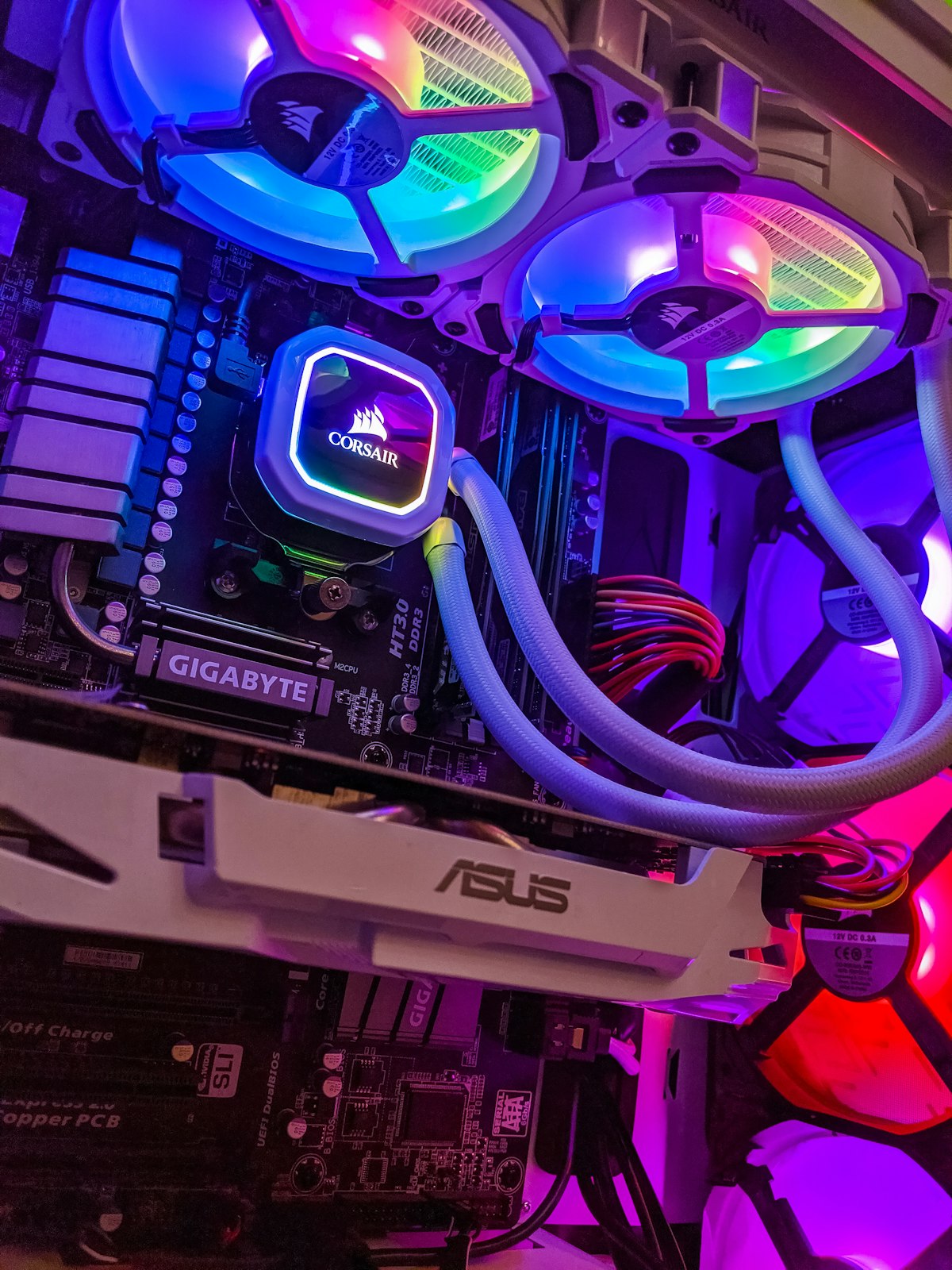
Is your PC running slower than a Monday morning? Making noises it definitely shouldn't be? You're not alone. Across Canberra and the rest of Australia, everyday computer users deal with frustrating tech issues that can feel overwhelming — especially if you're not particularly "techy."
The good news is that many common PC problems have simple fixes you can try yourself. And for the ones that don't? Well, that's what the professionals are here for. In this guide, we'll walk you through practical, no-nonsense PC repair tips that can save you time, money, and a whole lot of stress.
Start With the Basics: Common PC Problems and Quick Fixes
Before you panic and assume your PC is destined for the bin, run through these foundational checks. You'd be surprised how often a simple step resolves what feels like a catastrophic problem.
1. Restart Your Computer (Yes, Really)
It sounds clichéd, but a full restart — not just a sleep or hibernate — clears temporary files, flushes the RAM, and resets background processes that may have gone haywire. If you haven't restarted your PC in days or weeks, that's your first port of call.
2. Check Your Power and Connections
If your PC won't turn on at all, don't assume the worst. Check that:
- The power cable is firmly plugged into both the wall and the back of the machine
- The power board or outlet is actually working (test it with another device)
- The monitor is connected properly and switched on
- Any external devices (USB hubs, docking stations) aren't causing a conflict
Loose connections are one of the most common — and most overlooked — causes of "dead" PCs.
3. Free Up Disk Space
A full hard drive is one of the most common culprits behind a sluggish PC. Windows and macOS both need free space to operate efficiently, particularly for virtual memory and temporary files. Aim to keep at least 10–15% of your drive free at all times.
To free up space:
- Empty the Recycle Bin regularly
- Uninstall programs you no longer use
- Use the built-in Disk Cleanup tool (Windows) or Optimised Storage (Mac)
- Move photos, videos, and large files to an external drive or cloud storage
Dealing With a Slow PC: Step-by-Step Troubleshooting
A slow computer is arguably the number one complaint we hear from PC users. Here's how to systematically tackle it.
Step 1: Check What's Using Your Resources
Open Task Manager (Ctrl + Shift + Esc on Windows) or Activity Monitor on a Mac. Look at which programs are hogging your CPU or RAM. If a single application is consuming 80–90% of your processor, that's your culprit — try closing it, updating it, or uninstalling and reinstalling.
Step 2: Disable Startup Programs
Over time, software installs itself to launch automatically when Windows starts, bogging down your boot time and ongoing performance. To manage this:
- Open Task Manager
- Click the Startup tab
- Right-click any non-essential programs and select Disable
Be conservative — only disable things you recognise and know you don't need running constantly.
Step 3: Scan for Malware
Viruses, spyware, and adware can absolutely devastate your PC's performance — and they're more common than most people realise. Use a reputable tool like Malwarebytes (free version is fine for a one-off scan) alongside Windows Defender to check for infections.
If your PC is riddled with malware and you're not confident removing it safely, it's worth calling in a professional. A botched malware removal can sometimes cause more damage than the infection itself.
Step 4: Update Your Drivers and Operating System
Outdated drivers — particularly for your graphics card, network adapter, and chipset — can cause all manner of issues, from crashes to poor performance. Keep Windows Update running, and periodically check your hardware manufacturer's website for driver updates.
Hardware Issues: When It's More Than Just Software
Some PC problems go beyond what software fixes can solve. Here's how to recognise hardware trouble.
Overheating
If your PC is shutting down randomly, running loudly, or feeling hot to the touch, overheating is a likely cause. Dust is the number one enemy of PC cooling systems — it clogs fans and heatsinks, trapping heat inside the case.
What you can do:
- Use a can of compressed air to blow dust out of vents (do this outdoors!)
- Make sure your PC has adequate airflow — don't shove it in a tight cabinet
- Check that all internal fans are spinning (you can usually hear if one has stopped)
If your PC continues to overheat after cleaning, the thermal paste on your CPU may need replacing — a job best left to a technician.
Failing Hard Drive
Hard drives don't last forever. Warning signs of a failing drive include:
- Clicking or grinding noises
- Frequent system crashes or blue screens (Windows) / kernel panics (Mac)
- Files that won't open or have become corrupted
- Unusually long load times, even for simple tasks
If you suspect your hard drive is failing, act immediately. Back up everything you can to an external drive or cloud service. Data recovery becomes significantly harder — and more expensive — the longer you wait.
This is one area where the team at AlphaGeeks in Fyshwick, Canberra genuinely earns their keep. With professional data recovery tools and years of experience, they can often retrieve files from drives that seem completely gone.
RAM Problems
Faulty RAM can cause random crashes, blue screens, and bizarre behaviour that seems impossible to diagnose. You can test your RAM using the built-in Windows Memory Diagnostic tool:
- Press Windows + R, type
mdsched.exe, and hit Enter - Choose to restart now and check for problems
- Your PC will reboot and run the memory test automatically
If errors are found, one or more of your RAM sticks may need replacing.
Blue Screens of Death (BSOD): Don't Panic
The Blue Screen of Death is terrifying the first time you see it, but it's actually your computer's way of protecting itself from a serious error. Note down the error code displayed — it's your biggest clue to what went wrong.
Common BSOD causes include:
- Faulty or incompatible RAM
- Driver conflicts (especially after a recent Windows update)
- Overheating components
- Hard drive failure
- Corrupted system files
For corrupted system files, you can try running sfc /scannow in an elevated Command Prompt — this tool scans and repairs protected Windows files. If BSODs are happening regularly, however, professional diagnosis is the safest path forward.
Virus and Security Tips: Protect Your PC Before Problems Start
Prevention is always better than cure. Here are some simple habits that dramatically reduce your risk of malware infection and data loss.
Keep Software Updated
Security vulnerabilities in outdated software are one of the primary ways cybercriminals gain access to PCs. Enable automatic updates for Windows, your browser, and any frequently used applications.
Use Strong, Unique Passwords
A compromised account can lead to malware downloads and data theft. Use a password manager like Bitwarden or 1Password to generate and store strong passwords — you only need to remember one master password.
Be Cautious With Email Attachments
Phishing emails are rampant in Australia. If an email attachment or link looks suspicious — even if it appears to come from someone you know — don't click it. When in doubt, contact the sender directly via phone to verify.
Back Up Regularly
This cannot be overstated: back up your data. Use the 3-2-1 rule — three copies of your data, on two different media types, with one stored offsite (such as in the cloud). If your PC dies tomorrow, a solid backup strategy means you lose nothing.
When to Call a Professional PC Repair Technician
There's no shame in knowing when a problem is beyond a DIY fix. Here are clear signs it's time to hand things over to a professional:
- You're hearing unusual noises from your hard drive, fans, or power supply
- You've lost important files and need data recovery
- Your PC won't POST (power on self-test fails — no beeps, no display, nothing)
- You've tried multiple fixes and the problem persists or worsens
- You're uncomfortable opening up your machine — that's completely okay!
Opening a PC incorrectly can void warranties, cause static damage to components, or make a small problem much worse. If you're in the Canberra region, AlphaGeeks (located in Fyshwick, ACT 2609) offers expert PC repair, virus removal, data recovery, and hardware upgrades for both home users and small businesses. They're friendly, local, and won't blind you with jargon.
Quick Reference: PC Repair Checklist
Here's a handy summary of steps to run through when something goes wrong:
- ✅ Restart the computer fully
- ✅ Check all cables and connections
- ✅ Free up disk space
- ✅ Check Task Manager for resource hogs
- ✅ Disable unnecessary startup programs
- ✅ Run a malware scan
- ✅ Update drivers and Windows
- ✅ Clean dust from vents and fans
- ✅ Note any error codes or unusual sounds
- ✅ Back up your data before attempting major fixes
Final Thoughts
Most PC problems — even scary-sounding ones — are manageable if you stay calm, work methodically, and know your limits. The tips above will help you resolve a huge range of common issues quickly and safely.
But when things get serious, don't risk making things worse by going in blind. Whether it's a failing hard drive, a stubborn virus, or a PC that simply won't start, the experienced technicians at AlphaGeeks in Canberra are ready to help. Give them a call on (02) 5104 0855 or swing by their workshop in Fyshwick — they'd love to get your machine back in top shape.
Your PC works hard for you. Sometimes it deserves a little expert TLC.