
HDD vs SSD: Understanding Storage Technologies
HDD vs SSD: Understanding Storage Technologies
If you're considering upgrading your computer's storage or building a new system, understanding the differences between Hard Disk Drives (HDD) and Solid State Drives (SSD) is crucial. This guide explains the technology, performance differences, and helps you choose the right storage solution.
Storage Technology Basics
How HDDs Work
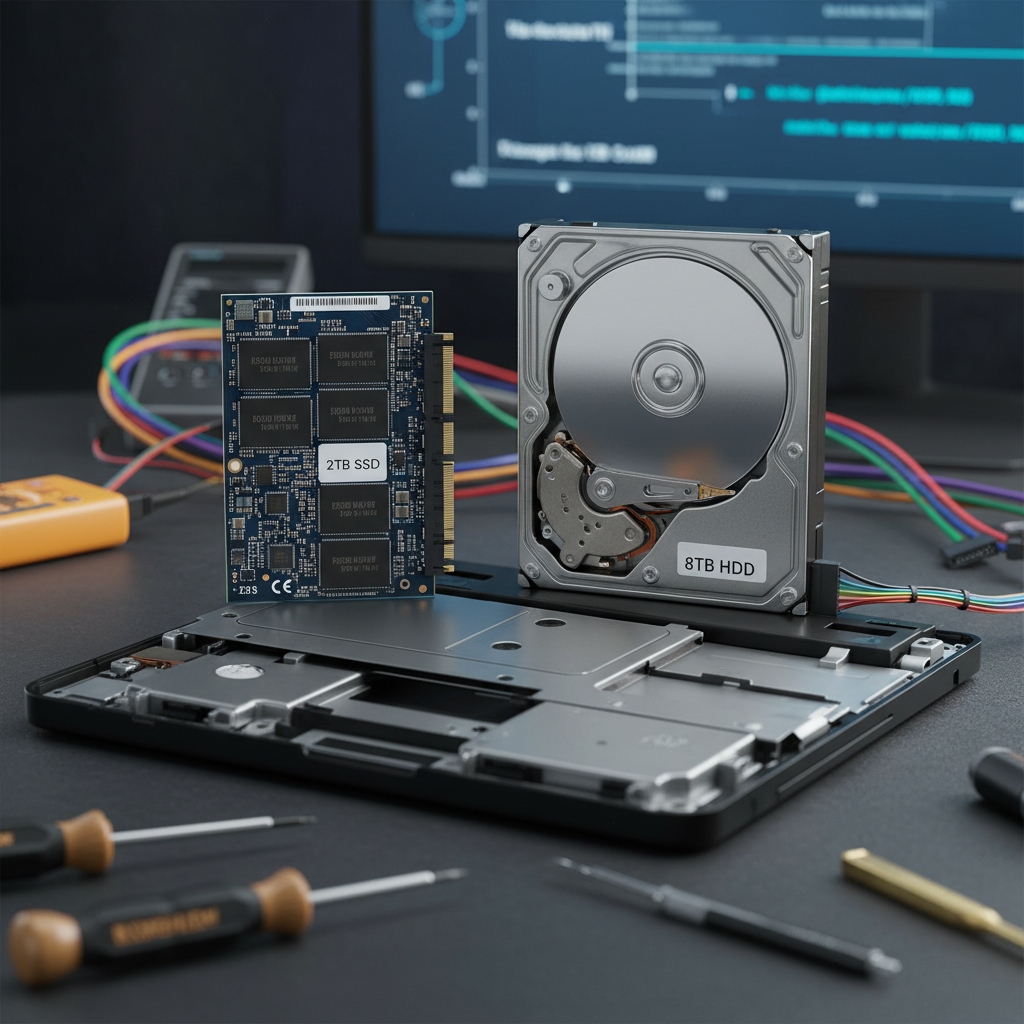
Hard Disk Drives use mechanical components:
- Spinning platters: Data is stored magnetically on rotating metal disks.
- Read/write heads: Magnetic heads read and write data as platters spin.
- Spindle motor: Rotates the platters at speeds typically between 5,400 and 7,200 RPM (revolutions per minute).
- Actuator arm: Moves the read/write head across the platter surface.
The mechanical nature of HDDs means they have moving parts that wear out over time.
How SSDs Work
Solid State Drives use flash memory:
- Flash memory cells: Store data electronically without moving parts.
- NAND flash: Most common type, arranged in a grid pattern.
- Controller: Manages data read/write operations and optimization.
- No moving parts: Entirely electronic, making them more durable.
SSDs use the same technology as USB drives and SD cards, just optimized for higher performance.
Performance Comparison
Speed
SSDs dramatically outperform HDDs:
Boot Time:
- HDD: 30-60 seconds
- SSD: 5-15 seconds
File Transfer:
- HDD: 50-160 MB/s
- SSD: 200-3,500+ MB/s (depending on SSD type)
Random Access Time:
- HDD: 5-10 milliseconds
- SSD: 0.1 milliseconds
The performance difference is immediately noticeable when using your computer.
Reliability and Lifespan
HDDs:
- Expected lifespan: 3-5 years
- Wear and tear: Moving parts eventually fail
- Susceptible to: Shock, vibration, heat
- Failure rate: Increases significantly after 5 years
SSDs:
- Expected lifespan: 5-10+ years
- Wear and tear: Minimal, no moving parts
- Lifespan limited by: Write cycles (TBW rating)
- Failure rate: Lower than HDDs
SSDs are generally more reliable for everyday use.
Noise and Heat
HDDs:
- Generate audible noise from spinning platters
- Produce more heat due to mechanical operation
- Can be annoying during quiet use
SSDs:
- Completely silent operation
- Generate minimal heat
- Better for laptops and quiet environments
Cost Comparison
Price per Gigabyte
As of 2026:
- HDD: $10-15 per TB
- SSD (SATA): $30-40 per TB
- SSD (NVMe): $25-35 per TB
SSDs are more expensive but offer better value considering performance and lifespan.
Real-World Cost
When considering total cost of ownership:
- SSDs last longer (5-10 years vs. 3-5 years)
- SSDs improve productivity through faster speeds
- SSDs reduce power consumption (especially in laptops)
- Faster computers mean less frustration
Over their lifespan, SSDs often provide better value despite higher initial cost.
Storage Capacity
Available Capacities
HDDs:
- Common: 500GB to 4TB
- Maximum: 12-18TB available
- Affordable large capacities
SSDs:
- Common: 256GB to 2TB
- Maximum: 8TB+ available
- More expensive at higher capacities
For large storage needs (video editing, media libraries), HDDs may be more cost-effective.
SSD Types
Not all SSDs are equal. Understanding SSD types helps you choose the right upgrade.
SATA SSD
- Connection: Standard SATA port (same as HDD)
- Speed: 200-550 MB/s
- Compatible: Works with any computer that had an HDD
- Cost: Most affordable SSD option
- Best for: Budget upgrades, older computers
NVMe SSD
- Connection: M.2 slot (faster connection protocol)
- Speed: 1,000-7,000+ MB/s
- Compatible: Requires NVMe M.2 slot (most modern computers have this)
- Cost: Mid-range SSD pricing
- Best for: High-performance gaming and professional work
Form Factors
- 2.5-inch: Traditional drive size, same as HDD (SATA SSDs)
- M.2 2280: Small stick-like form factor (most common NVMe)
- M.2 2230: Even smaller, used in some ultrabooks
- U.2: Enterprise and high-performance drives
Performance Examples
Office Work and Web Browsing
- HDD sufficient: Yes, acceptable performance
- SSD recommended: Yes, significantly improves responsiveness
- Performance difference: Very noticeable
Gaming
- HDD sufficient: Barely; long load times frustrate
- SSD recommended: Essential; SSD is standard for modern gaming
- Performance difference: Game worlds load 5-10x faster
Video Editing
- HDD sufficient: No; too slow for 4K video work
- SSD recommended: Essential for smooth playback and editing
- Performance difference: Dramatic improvement in workflow
Large File Backups
- HDD sufficient: Yes; speed is less critical for backups
- SSD recommended: Helpful but not essential
- Performance difference: Noticeable but not critical
Hybrid Storage Solutions
Many professionals use both HDD and SSD:
- Primary SSD: Fast boot drive and primary programs
- Secondary HDD: Large capacity storage for files and archives
- Best of both: Speed where it matters, capacity where you need it
- Cost effective: Reasonable price with excellent performance
Example configuration:
- 500GB NVMe SSD for Windows/macOS and applications
- 2TB HDD for documents, photos, and backups
Choosing the Right Option
Choose HDD If You:
- Need maximum storage capacity on a budget
- Only use your computer for basic tasks
- Plan to keep your computer for many more years
- Need to store large media libraries
Choose SSD If You:
- Want noticeable performance improvement
- Use your computer for gaming or professional work
- Prefer quieter, cooler operation
- Value reliability and durability
- Want your computer to feel responsive
Choose Hybrid Solution If You:
- Want both speed and capacity
- Use your computer for various tasks
- Want optimal price-to-performance ratio
SSD Migration Tips
If upgrading from HDD to SSD:
- Clone your drive: Use migration software to copy everything from HDD to SSD
- Set SSD as primary: Configure your computer to boot from the SSD
- Use HDD for storage: Keep the HDD for large file storage
- TRIM support: Ensure your OS supports TRIM for SSD optimization
- Over-provisioning: Leave 10-15% of SSD unpartitioned for optimal performance
Professional Installation
If you're unsure about upgrading:
- AlphaGeeks provides professional SSD installation and migration
- We'll transfer your data safely from HDD to SSD
- We'll optimize your SSD for peak performance
- We'll ensure your computer is configured correctly
Conclusion
SSDs have become the standard storage solution for modern computers due to their superior speed, reliability, and durability. While HDDs still have a place for high-capacity storage, most users should choose an SSD as their primary drive.
For those wanting both speed and capacity, a hybrid solution with an SSD primary drive and HDD secondary drive provides excellent performance and value.
If you're ready to upgrade your storage, contact AlphaGeeks today. Our technicians can help you choose the right solution and ensure proper installation and configuration!