
Why Your Computer Is Running Hot and How to Fix It
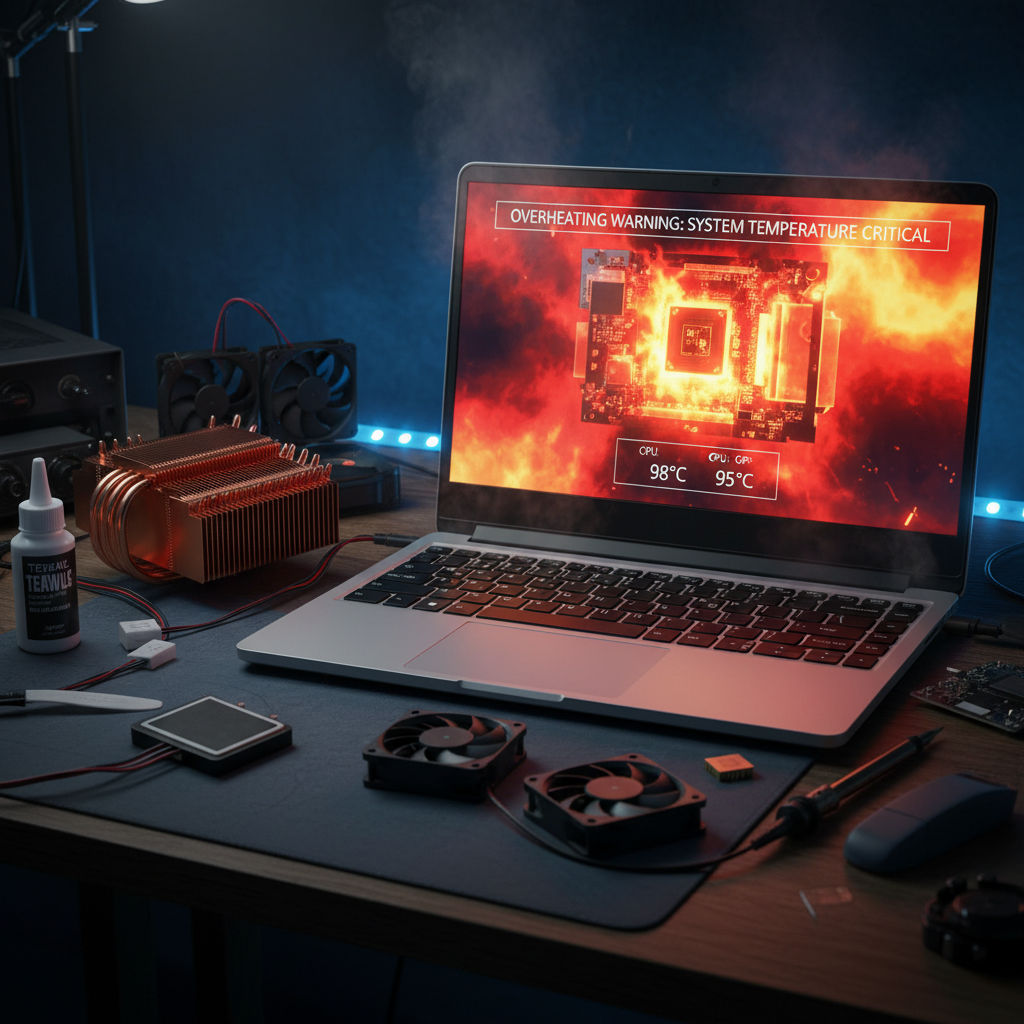
Why Your Computer Is Running Hot and How to Fix It
Overheating is one of the most common computer problems, and if left unaddressed, it can cause permanent damage to your hardware. This guide explains why computers overheat and provides practical solutions to keep your device cool.
Why Computers Overheat
Dust Accumulation
Dust is the primary culprit in computer overheating:
- Blocks airflow: Dust buildup in fans and vents restricts the airflow needed for cooling.
- Insulates components: Dust acts as an insulator, trapping heat around critical components.
- Reduces fan efficiency: Dusty fans work harder and less efficiently.
Desktop and laptop computers accumulate dust over time. Depending on your environment, cleaning may be needed every 3-6 months.
Failing Cooling Hardware
Over time, cooling components degrade:
- Worn-out fans: Fan bearings wear out, causing fans to fail or run inefficiently.
- Dried thermal paste: The thermal paste that transfers heat from the CPU to the heatsink dries and becomes less effective over 3-5 years.
- Clogged heatsinks: Heatsinks designed to dissipate heat become clogged with dust.
- Failed water cooling: If your computer uses liquid cooling, leaks or pump failures cause overheating.
Excessive Workload
Higher CPU usage generates more heat:
- Gaming and video editing: Resource-intensive applications generate significant heat.
- Cryptocurrency mining: Mining consumes 100% CPU and causes extreme heat.
- Malware: Malicious programs can consume CPU resources without your knowledge.
- Browser tabs: Streaming video and running web applications consume resources.
Poor Ventilation
- Restricted airflow: Placing your computer against a wall, in a closet, or under a desk restricts cooling.
- Blocked vents: Ensure nothing covers the intake and exhaust vents.
- Hot environment: High ambient temperature makes cooling more difficult.
- Inadequate case design: Budget cases often have poor airflow design.
Old Thermal Paste
Thermal paste degrades over time and should be replaced every 3-5 years:
- Reduced heat transfer: Old paste doesn't transfer heat as efficiently as fresh paste.
- Cracking and peeling: Paste can dry out and crack, creating air gaps.
- Oxidation: Paste can oxidize and lose effectiveness.
Identifying Overheating
Warning Signs
- Loud fan noise: Fans working at maximum capacity indicate overheating.
- Thermal throttling: Performance drops significantly under load to reduce heat.
- Random shutdowns: Your computer shuts down to prevent heat damage.
- Screen freezing: System becomes unresponsive due to CPU throttling.
- Burning smell: A burning smell indicates serious problems requiring immediate attention.
Monitoring Temperature
Use temperature monitoring software:
- HWInfo64 (Windows): Detailed hardware information and real-time temperatures.
- Core Temp (Windows): Simple CPU temperature monitoring.
- iStat Menus (Mac): Comprehensive system monitoring for Apple computers.
- Open Hardware Monitor (Windows/Linux): Free, open-source monitoring tool.
Normal CPU temperatures:
- Idle: 30-50°C (86-122°F)
- Under load: 60-80°C (140-176°F)
- High load gaming: 80-95°C (176-203°F)
- Critical: Above 95-100°C indicates overheating
Solutions to Fix Overheating
Immediate Solutions
Clean Your Computer
Dust removal is the most effective solution:
For Desktops:
- Shut down and unplug your computer
- Open the case (consult your manual if unsure)
- Use compressed air to blow dust from fans, heatsinks, and vents
- Gently clean fans with a soft brush
- Close the case and restart
For Laptops:
- Shut down and disconnect the power adapter
- Use compressed air at an angle to blow air through vents
- Clean external vents with a soft brush
- Never disassemble a laptop without proper training
Improve Ventilation
- Move your computer: Ensure at least 6 inches of space around intake vents.
- Elevate your laptop: Use a laptop stand to improve airflow under the device.
- Add a cooling pad: External cooling pads can reduce laptop temperatures by 5-10°C.
- Use a desk fan: A small desk fan directed toward your computer's vents can help.
Reduce Workload
- Close unnecessary applications: Reduce CPU usage by closing programs you're not using.
- Limit browser tabs: Close unused tabs and browser extensions.
- Disable auto-play: Disable video auto-play on websites.
- Check for malware: Malware can consume CPU resources; run a malware scan.
Reduce Ambient Temperature
- Cool room: Run air conditioning in the room where your computer is located.
- Avoid sunny spots: Don't place your computer in direct sunlight.
- Time usage: Use your computer during cooler times of day if possible.
Long-Term Solutions
Replace Thermal Paste
If your computer is more than 3-5 years old:
- Shut down and unplug your computer
- Open the case carefully
- Locate the CPU and heatsink
- Remove the heatsink (consult your manual for proper procedure)
- Clean old thermal paste with isopropyl alcohol
- Apply a small amount of fresh thermal paste to the CPU
- Reinstall the heatsink
- Close the case and test temperatures
Pro tip: This is tricky and requires care. Consider having AlphaGeeks do this for you.
Upgrade Cooling Hardware
For persistent overheating:
- Upgrade case: A case with better airflow design can significantly reduce temperatures.
- Add more fans: Install additional case fans for better airflow (intake and exhaust).
- Upgrade to liquid cooling: High-end gaming computers often benefit from liquid cooling systems.
- Professional installation: AlphaGeeks can install upgraded cooling systems properly.
Storage Upgrade
If your drives are old:
- Replace HDD with SSD: SSDs generate less heat and are faster.
- Better for laptops: This is especially important for laptop computers where space is limited.
When to Seek Professional Help
Consider professional help if:
- Overheating persists after cleaning and improving ventilation
- You're uncomfortable opening your computer
- Unusual sounds accompany overheating
- Multiple components seem to be failing
- You need thermal paste replacement or cooling system upgrades
AlphaGeeks offers professional cleaning, thermal paste replacement, and cooling system optimization services.
Prevention Tips
Keep your computer cool long-term:
- Regular cleaning: Clean your computer every 3-6 months depending on dust levels
- Maintain good ventilation: Keep vents and surroundings clear
- Monitor temperatures: Use monitoring software to catch problems early
- Update BIOS/drivers: Keep your BIOS and chipset drivers current for optimal cooling control
- Reduce usage during hot weather: Be mindful of ambient temperature
Conclusion
Overheating is a serious problem that can damage your computer, but it's preventable with proper maintenance. Most overheating issues are solved with simple cleaning, but some situations require professional intervention.
If your computer is running hot and you'd like professional help, contact AlphaGeeks today. Our technicians can diagnose the problem and implement the best solution to keep your computer cool and running smoothly!