
The Ultimate Guide to Computer Maintenance: Keeping Your PC Running Smoothly
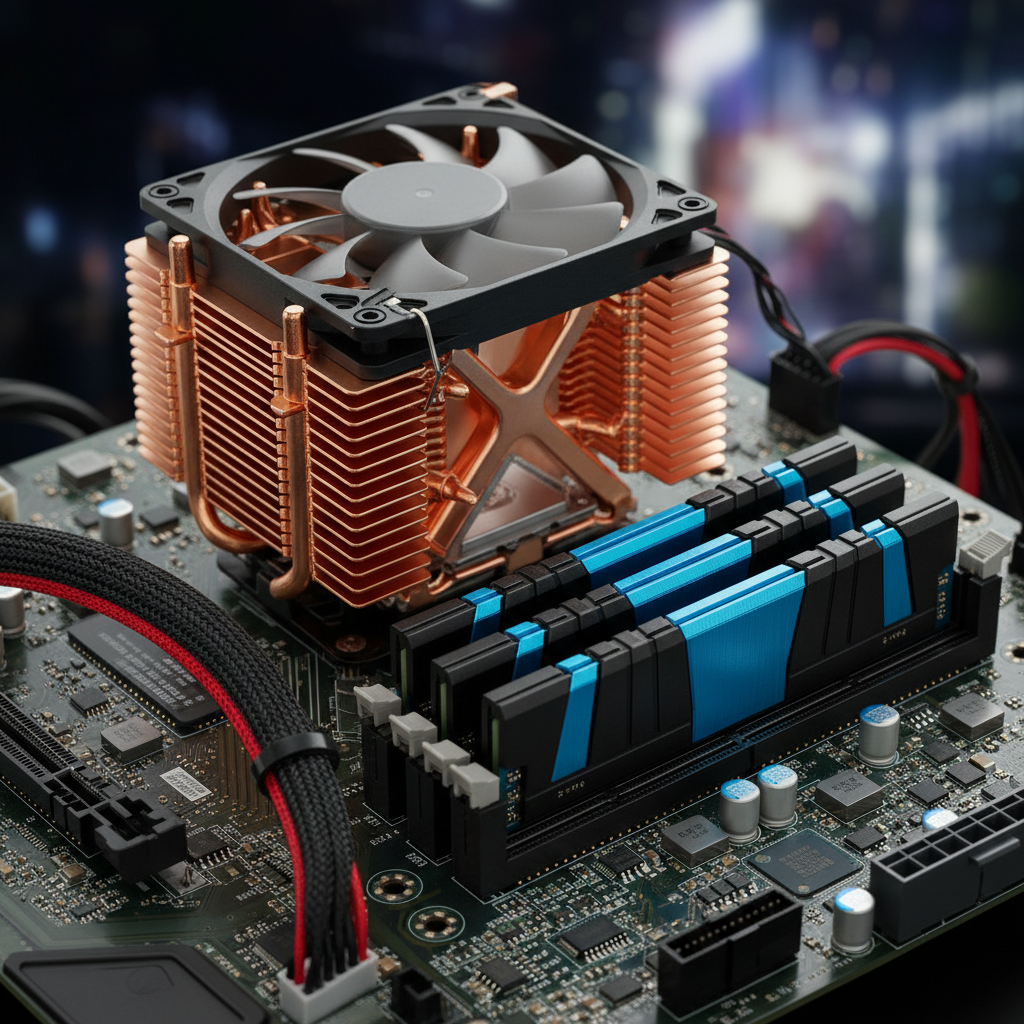
The Ultimate Guide to Computer Maintenance: Keeping Your PC Running Smoothly
Regular maintenance is the key to keeping your computer running efficiently and preventing costly repairs down the line. In this comprehensive guide, we'll share expert tips from AlphaGeeks on how to maintain your PC and maximize its lifespan.
Why Computer Maintenance Matters
Just like a car, computers require regular maintenance to function optimally. Neglecting maintenance can lead to:
- Reduced performance: Your computer will slow down significantly.
- Increased crashes: System instability becomes more frequent.
- Data loss risk: Failing drives pose a serious threat to your important files.
- Higher repair costs: Small problems become expensive when left unaddressed.
- Security vulnerabilities: Outdated software leaves your system exposed to attacks.
By investing a little time in maintenance, you can avoid these problems and keep your computer running smoothly.
Hardware Cleaning
Exterior Cleaning
Start with the outside:
- Keyboard: Use a soft brush or compressed air to remove dust and debris between keys. For stubborn dirt, slightly dampen a cloth with water or isopropyl alcohol.
- Screen: Use a microfiber cloth to gently wipe your monitor. Avoid harsh chemicals that can damage the coating.
- Case: Dust the external case with a soft cloth.
Internal Cleaning
Internal dust buildup is a major culprit in performance degradation:
- Fan cleaning: Use compressed air to blow dust from your cooling fans. Excessive dust restricts airflow and causes overheating.
- Heat sink cleaning: If you're comfortable opening your PC, carefully clean the CPU heat sink and apply fresh thermal paste if needed.
- Power supply vents: Ensure the power supply is clean and has proper airflow.
Professional tip: Bring your computer to AlphaGeeks for professional internal cleaning. Our technicians have the right tools and expertise to do this safely.
Software Maintenance
Operating System Updates
Keep your operating system current:
- Security patches: Critical updates fix security vulnerabilities that hackers exploit.
- Performance improvements: OS updates often include optimizations that improve system speed.
- Compatibility: New software requires updated OS versions to run properly.
Enable automatic updates to ensure you never miss important patches.
Driver Updates
Device drivers are essential software that allows your hardware to communicate with your operating system:
- GPU drivers: Graphics drivers affect gaming and display performance.
- Chipset drivers: These improve overall system stability.
- Network drivers: Essential for internet connectivity.
- Storage drivers: Important for hard drive and SSD performance.
Check for driver updates monthly, or use driver update software for automatic updates.
Malware and Virus Protection
Malware is a constant threat:
- Install antivirus software: Use reputable antivirus software like Windows Defender, Norton, or McAfee.
- Regular scans: Run full system scans weekly to catch infections early.
- Real-time protection: Keep real-time scanning enabled at all times.
- Avoid suspicious downloads: Only download from trusted sources.
Disk Cleanup and Optimization
Regularly clean up your storage:
- Delete temporary files: Use Disk Cleanup to remove temporary internet files, recycle bin contents, and old system files.
- Uninstall unused programs: Programs you no longer use consume disk space and system resources.
- Clear browser cache: Cache files accumulate over time and consume valuable storage.
- Defragmentation (HDD only): For mechanical hard drives, defragmentation can improve performance. SSDs should never be defragmented.
Storage Management
Hard Drive vs. SSD
Understanding your storage type is crucial:
- Hard Disk Drives (HDD): Have moving parts that wear out over time. Regular defragmentation helps, but they're less reliable than SSDs.
- Solid State Drives (SSD): No moving parts, more reliable, faster performance. Don't defragment SSDs as it can reduce their lifespan.
Backup Your Data
This is perhaps the most important maintenance task:
- 3-2-1 rule: Keep three copies of your data, on two different types of media, with one offsite.
- Automated backups: Use backup software like Acronis, Backblaze, or Windows Backup for automatic daily or weekly backups.
- Cloud storage: Services like OneDrive, Google Drive, and iCloud provide automatic cloud backup.
- External drives: Regular backups to external hard drives provide additional security.
Performance Optimization
Startup Programs
Many programs launch at startup, slowing down boot time:
- Disable unnecessary startup programs: Open Task Manager and review startup programs. Disable those you don't need running constantly.
- Typical boot time: A properly maintained computer should boot in under 30 seconds.
RAM Management
- Monitor memory usage: Open Task Manager to see which programs consume the most RAM.
- Close unnecessary programs: Running too many programs simultaneously can slow your computer.
- Upgrade RAM if needed: If you consistently run out of memory, consider upgrading to more RAM.
Storage Space
Maintain at least 20% free space on your drive:
- Helps performance: Your OS needs free space for virtual memory and temporary files.
- Extends drive lifespan: Full drives stress the storage system.
- Prevents data loss: Fragmentation increases on nearly-full drives.
Temperature Management
Monitor System Temperature
Use temperature monitoring software to keep tabs on your system:
- Normal temperatures: CPUs typically run between 30-60°C under normal use, 70-85°C under load.
- Concerning temperatures: Above 90°C indicates a cooling problem that needs attention.
Improve Cooling
- Ensure proper ventilation: Keep intake and exhaust vents clear.
- Use a cooling pad: If using a laptop, especially during summer months.
- Check case airflow: For desktops, ensure fans are pushing air in the right direction.
- Replace thermal paste: If your computer is several years old, fresh thermal paste can significantly improve cooling.
Network and Internet Security
WiFi Security
- Strong passwords: Use WPA2 or WPA3 encryption with a strong password.
- Hide SSID: Optionally hide your network name (though this provides minimal security).
- Update router firmware: Keep your router software current.
Browser Security
- Use HTTPS: Only visit websites with HTTPS (look for the padlock icon).
- Clear cookies and cache: Regularly clear browser data.
- Disable plugins: Disable Flash and other plugins that are rarely needed and often exploited.
- Install ad blockers: Ad blockers reduce malware exposure.
Monthly Maintenance Checklist
Make maintenance a habit with this simple checklist:
- [ ] Check for operating system updates and install them
- [ ] Scan for malware and viruses
- [ ] Clear temporary files and browser cache
- [ ] Check system temperature
- [ ] Verify backups are running properly
- [ ] Review startup programs and disable unnecessary ones
- [ ] Check available disk space (ensure at least 20% is free)
- [ ] Update drivers
- [ ] Physically clean your computer (exterior and vents)
When to Seek Professional Help
While regular maintenance can prevent many issues, some problems require professional attention:
- Persistent overheating: If cooling issues persist after cleaning.
- Unusual noises: Clicking or grinding sounds indicate hardware failure.
- Performance issues: If your computer is still slow after optimization.
- Blue screen errors: Persistent crashes need professional diagnosis.
- Security breaches: If you suspect your computer has been compromised.
AlphaGeeks offers professional maintenance services to keep your computer in peak condition. We can handle deep cleaning, thermal paste replacement, software optimization, and more.
Conclusion
Regular maintenance is the best investment you can make in your computer's longevity and performance. By following these tips, you can avoid expensive repairs, protect your data, and ensure your computer runs smoothly for years to come.
For professional maintenance services or any concerns about your computer's health, contact AlphaGeeks today!